
Plans & billing
You manage your own subscription from two pages: Plans, where you choose a tier, and Billing & Usage, where you review your current plan, track your data usage, and open the secure payment portal. For what each tier unlocks and the limits that apply, see Subscription tiers.
Choosing or changing a plan
Section titled “Choosing or changing a plan”- Open the account menu and choose Plan (or follow an upgrade prompt). This opens the Plans page.
- Review the plan cards. Your current plan is marked, and unavailable plans are shown as coming soon.
- Select the plan you want. The Free plan applies immediately. Membership is not yet open for self-serve purchase: until it is, its card reads Coming soon and links to our sales team. When the plan is on sale, the card’s button takes you to payment. Enterprise is arranged with our sales team: its card links to the contact page.
- If you chose Membership, complete the payment step. You’re returned to the Billing page, which confirms the result and refreshes automatically once the payment is processed.
Reviewing and managing your subscription
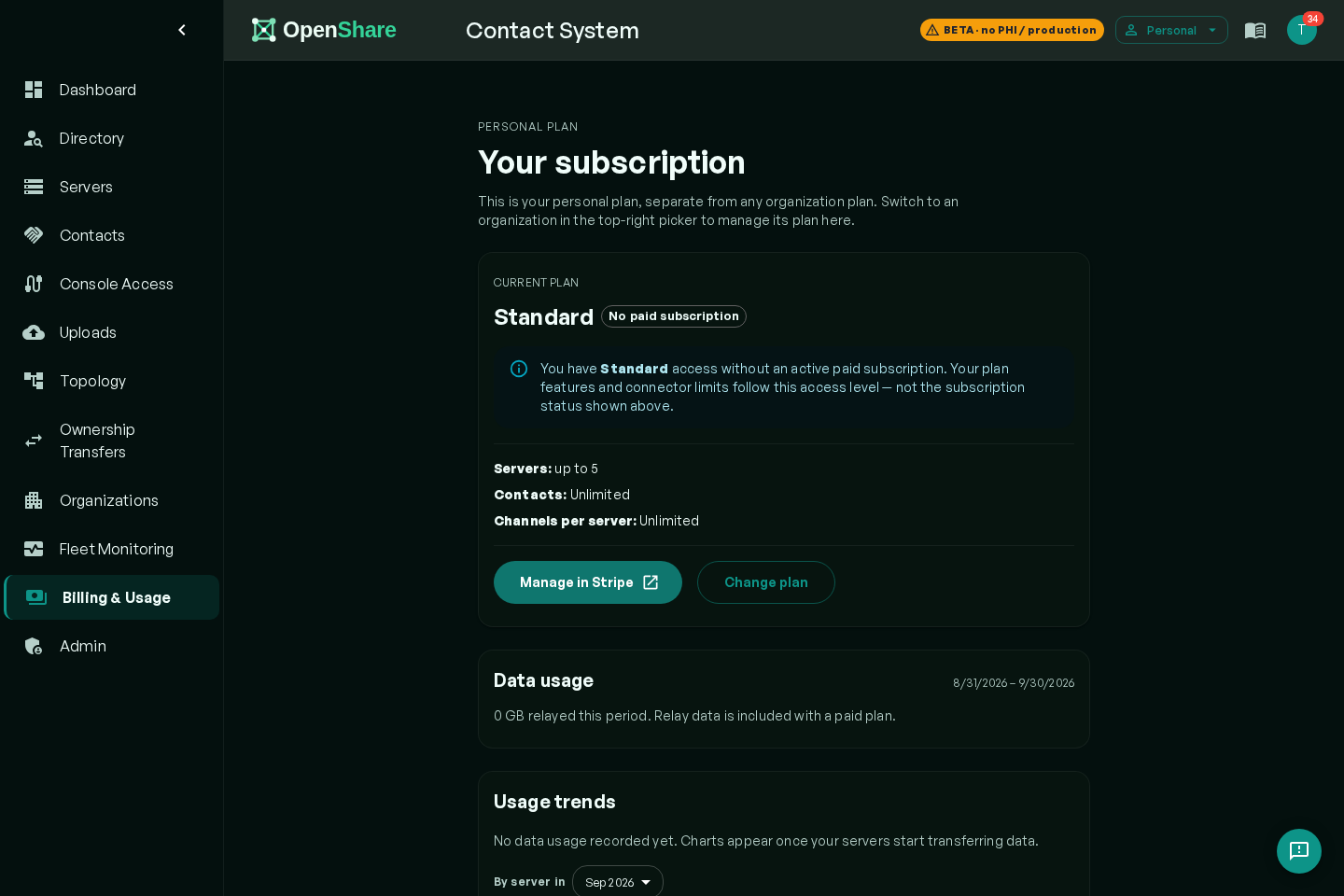
Section titled “Reviewing and managing your subscription”Open the Billing page to see your subscription at a glance:
- Current plan and its status (for example, active, trialing, or past due). An account with no paid subscription — which includes everyone on the Free plan — shows a neutral No paid subscription label; that is normal, not an error.
- The limits your plan grants for servers, contacts, and channels per server.
- Your next billing date, or the cancellation date if the plan is set to cancel.
An account that pays for its plan by card has a Manage in Stripe button on this page. It opens the payment provider’s secure portal, where you change payment details or cancel. An account that bought its plan through AWS Marketplace has Manage in AWS Marketplace instead. Either button appears once you’ve completed a purchase, so an account on the Free plan, or on a plan arranged with our sales team, has neither. To pick a different plan, use the option to change your plan, which returns you to the Plans page.
Tracking your data usage
Section titled “Tracking your data usage”Below the plan summary, the Billing page shows how much data your servers have transferred. All amounts adapt their unit — KB, MB, or GB — to the size of the value.
Data usage
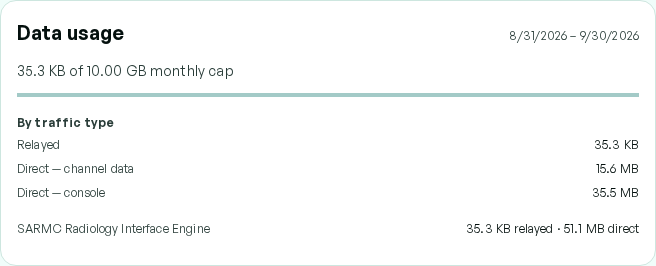
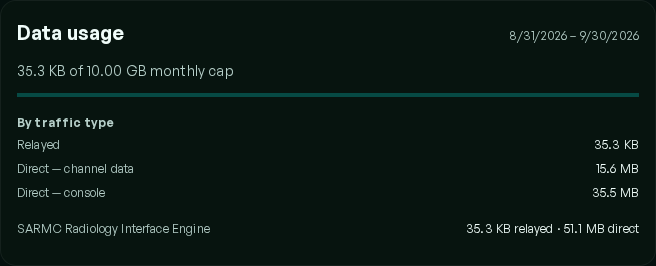
Section titled “Data usage”The Data usage card covers the current calendar month (UTC):
- On the Free plan, a gauge tracks your relayed data against the 100 GB monthly cap. If you reach the cap, the card tells you that your data connections and browser uploads are paused and gives the date your usage resets. Console access keeps working.
- On a paid plan, data is never stopped at a cap. The card shows the data your servers relayed this month. On a Membership subscription it also shows billed data, which can differ from relayed data. See Relayed and billed data.
- By traffic type breaks the total down into Relayed (data that traveled through the platform’s relay), Direct — channel data, and Direct — console. Direct traffic flows server to server without the relay; only relayed data counts toward the Free cap.
- By server lists each of your servers with its own relayed — and, where present, direct — totals. On a Membership subscription, a server whose billed figure differs from its relayed figure shows both.
Relayed and billed data
Section titled “Relayed and billed data”Membership is not yet open for purchase. How its data will be charged is described in How Membership is charged.
On a Membership subscription, the Data usage card shows relayed and billed data when they differ — for example, 14.00 GB relayed · 7.00 GB billed — with the reason for each rule that applied. Data is billed as follows:
- Both sides on a Membership subscription. Each side is billed half of the connection’s data, direct and relayed. Your half is worked out from what your own server’s plugin reports for the connection, so your partner’s server does not change your bill. A connection between two of your own servers is billed once in total.
- Console sessions, browser uploads and loopback connections are billed once, even when both ends use the relay.
- Everything else is billed in full: connections where the other side is on the Free plan, on Enterprise, or has paid access granted by an administrator, deleted connections, data your server’s plugin does not report per connection (older plugin versions), and data that cannot be matched to a single connection (for example, data received by a Gateway Listener that receives from several senders).
When more than one rule applies, the card lists relayed and billed data for each; rows that follow a rule show its reason. The Free plan is never billed: its monthly cap counts relayed data. Enterprise plans, and paid access granted by an administrator, are not invoiced for relayed data, so their cards show relayed data only.
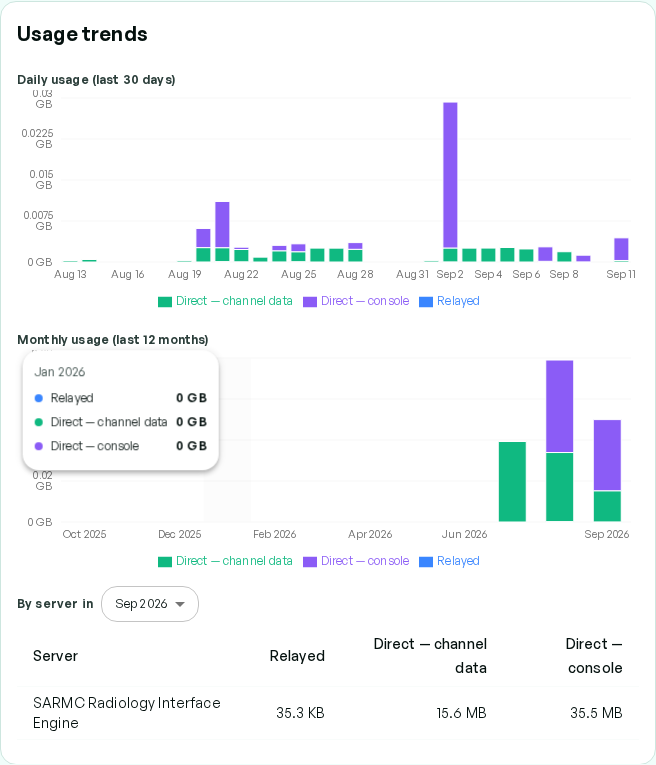
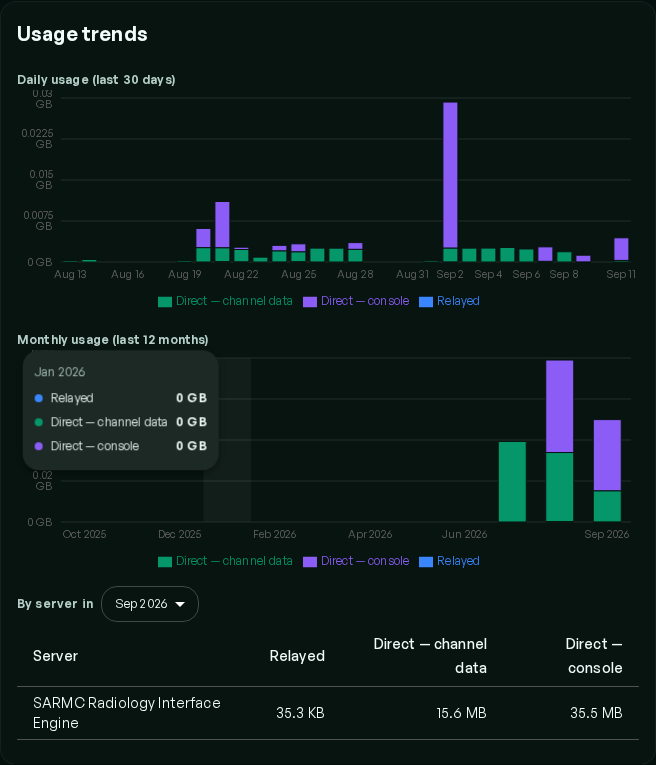
Usage trends
Section titled “Usage trends”The Usage trends card puts the current month in context:
- A daily chart of the last 30 days, stacked by traffic type.
- A monthly chart of up to the last 12 months, shown once more than one month has data.
- A By server in table — pick a month to see each server’s relayed and direct totals for that month. On a Membership subscription, the current and previous month also show the month’s relayed and billed totals; older months show relayed data only.
The card notes when no usage has been recorded yet; charts appear once your servers start transferring data.
Sponsored connections
Section titled “Sponsored connections”The Sponsored connections card tracks how many connections you fund on behalf of free-plan contacts. Sponsoring is a paid-plan capability, so on the Free plan the card simply notes that sponsoring is included with a paid plan. See Subscription tiers.
When your tier changes
Section titled “When your tier changes”When your tier changes, the app reflects it the next time it refreshes your account details, and your connected servers pick up the updated plan entitlements shortly after. See Subscription tiers for details.